
How to Open the Console in CS2
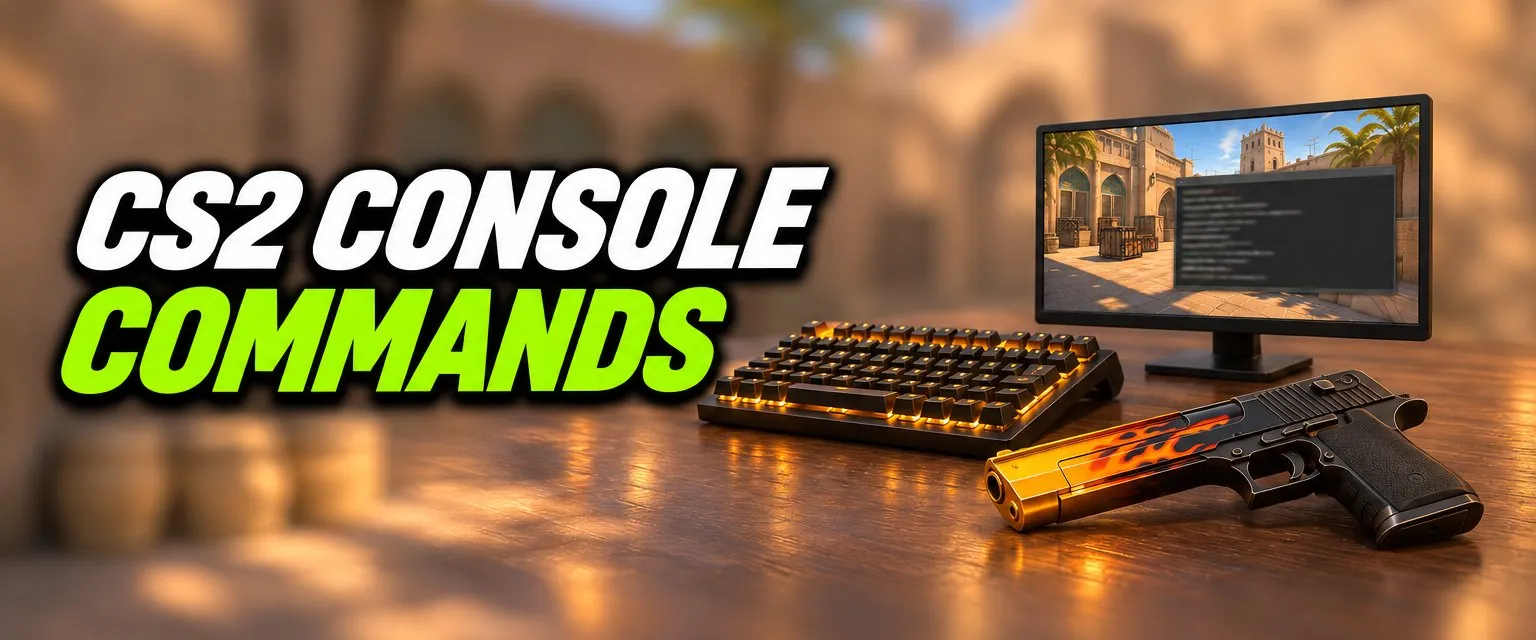
The developer console is off by default. To turn it on:
- Open Settings > Game.
- Set Enable Developer Console (~) to Yes.
- In a match or the menu, press the ~ key (above Tab, left of 1). On some keyboard layouts it is the ` key in the same place.
To open it on every start, add -console to your launch options; our launch options guide shows how. If the key does nothing, rebind the console in the keyboard settings to a key you can reach. One restriction: since September 2023 the console toggle can no longer be bound to the left mouse button.
Using the Console
- Type a command and press Enter. Most commands take a value after a space, like
cl_showfps 1. - Type part of a command and the console suggests matches. Use the arrow keys to pick one.
- Type a command with no value to see its current value and a short description.
- Commands marked (cheat) below need
sv_cheats 1, which only works on a local server or a private server you control. They are for practice and do nothing in matchmaking.
General Commands
| Command | What it does |
|---|---|
quit | Closes the game |
disconnect | Leaves the current server or match |
connect <address> | Joins a server by IP address |
status | Prints connection details and the players on the server |
map <name> | Starts a local game on a map, for example map de_mirage |
changelevel <name> | Switches the current server to another map |
exec <file> | Runs a .cfg file, for example exec autoexec |
host_writeconfig | Saves your current settings straight away |
clear | Clears the console |
echo <text> | Prints text to the console; useful at the end of a config |
HUD, FPS and Sound Commands
| Command | What it does |
|---|---|
cl_showfps 1 | Shows your frame rate (0 turns it off) |
fps_max <n> | Caps your FPS; 0 means no limit. Cannot be changed while connected to a server |
fps_max_ui <n> | Caps your FPS in menus |
cl_hud_color <0-11> | Changes the HUD colour |
cl_radar_scale <0.25-1> | Zooms the radar in or out |
cl_radar_always_centered 0 | Stops the radar always centring on you |
cl_radar_rotate 0 | Keeps the radar fixed instead of rotating with you |
cl_draw_only_deathnotices 1 | Hides the HUD except the kill feed (and match alerts) |
cl_teamid_overhead_mode | Changes the teammate markers above heads |
r_fullscreen_gamma | Changes brightness; fullscreen only |
volume <0-1> | Sets the master volume |
snd_menumusic_volume 0 | Turns off the menu music |
snd_roundstart_volume | Sets the volume of the round-start music |
viewmodel_fov <54-68> | Sets how large the gun appears; see the Viewmodel Generator |
viewmodel_presetpos <1-3> | Loads a built-in gun position: 1 Desktop, 2 Couch, 3 Classic |
For the gun position, the Viewmodel Generator previews it live and writes the exact viewmodel_* commands. Crosshair commands (cl_crosshairsize, cl_crosshairgap, cl_crosshaircolor and the rest) are easiest to build in the Crosshair Generator, which also gives you a share code.
Practice and Server Commands
Start a local game with map de_mirage (or any map), then use these.
| Command | What it does |
|---|---|
sv_cheats 1 | Allows cheat-protected commands on your local server |
mp_warmup_end | Ends warmup |
mp_restartgame 1 | Restarts the match after 1 second |
bot_kick | Removes all bots |
bot_add_t / bot_add_ct | Adds a bot to the T or CT side |
bot_stop 1 | Freezes bots in place (cheat) |
bot_place | Puts a bot where you are aiming (cheat) |
mp_roundtime_defuse 60 | Makes rounds 60 minutes long on defuse maps |
mp_freezetime 0 | Removes freeze time at round start |
mp_buy_anywhere 1 | Lets you buy anywhere on the map |
mp_buytime 9999 | Keeps the buy menu open (value in seconds) |
mp_startmoney 16000 | Sets starting money |
mp_maxmoney 16000 | Sets the money cap |
sv_infinite_ammo 1 | Gives you infinite ammo (cheat) |
ammo_grenade_limit_total 5 | Lets you carry more grenades (default 4) |
sv_grenade_trajectory_prac_pipreview 1 | Shows a picture-in-picture preview of where a grenade will land |
sv_rethrow_last_grenade | Throws your last grenade again from the same spot (cheat) |
sv_showimpacts 1 | Shows where your bullets hit |
noclip | Fly through walls (cheat) |
god | Makes you invulnerable (cheat) |
give <item> | Gives you a weapon, for example give weapon_ak47 (cheat) |
host_timescale <n> | Speeds up or slows down the game (cheat) |
cl_showpos 1 | Shows your position and speed; 2 adds stamina and jump height (cheat) |
A Ready-Made Practice Config
Paste this into a file named practice.cfg in your game\csgo\cfg folder, start a local map, and type exec practice. You get a long round, money and grenades to spare, and grenade previews.
sv_cheats 1
bot_kick
mp_warmup_end
mp_freezetime 0
mp_roundtime_defuse 60
mp_buy_anywhere 1
mp_buytime 9999
mp_startmoney 16000
mp_maxmoney 16000
sv_infinite_ammo 1
ammo_grenade_limit_total 5
sv_grenade_trajectory_prac_pipreview 1
sv_showimpacts 1
mp_restartgame 1
Binds
A bind ties a key to a command: bind "key" "command". For example bind "f" "+lookatweapon" inspects your weapon with F. unbind "key" removes one and unbindall clears every bind, so use that last one carefully.
Since August 2024, a bind that combines more than one movement or attack action (for example jump plus attack, or a null-bind for counter-strafing) is ignored by default. Valve made jump-throws reliable without a bind instead: jump and throw the grenade quickly.
Commands on Community Maps
Since January 2026, community and workshop maps can only run a smaller list of allowed console commands. That protects you from maps that change your settings. If a practice map you trust needs more, Valve added the -disable_workshop_command_filtering launch option to turn the filter off.
CS:GO Commands That Don't Work in CS2
net_graph: removed. Use the Telemetry options in Settings > Game; see our best settings guide.cl_righthand: CS:GO only. Choose your weapon hand in the settings instead.cl_interp: can no longer be changed directly. Valve replaced it with the "Buffering to smooth over packet loss" setting.- Jump-throw binds: no longer needed or allowed, as above.
Frequently Asked Questions
How do I open the console in CS2?
Go to Settings > Game and set Enable Developer Console (~) to Yes. Then press the ~ key, above Tab, to open and close it.
Why won't my CS2 console open?
Either the developer console is still disabled in Settings > Game, or your keyboard layout puts the console key somewhere else. Enable it, then rebind the console to a key you can reach in the keyboard settings.
How do I enable cheats in CS2?
Type sv_cheats 1 in the console while you are running a local game or a private server you control. Cheat commands do not work on official matchmaking servers.
How do I get infinite ammo in CS2?
In a local game, type sv_cheats 1 and then sv_infinite_ammo 1.
How do I show FPS with a console command?
Type cl_showfps 1. Type cl_showfps 0 to hide it again. CS2 also has a Telemetry section in Settings > Game that can show your frame rate without the console.
Does net_graph work in CS2?
No. net_graph was removed in CS2. Use the Telemetry options in Settings > Game to see FPS, ping and network quality.